
Overlay and alert setup
CheddarChat alerts are a Browser Source. Copy the URL from Settings → Alerts & Overlays, then add it in OBS, Streamlabs Desktop, or PRISM Live Studio.
1Before you start
- Copy the alerts URL from Alerts & Overlays.
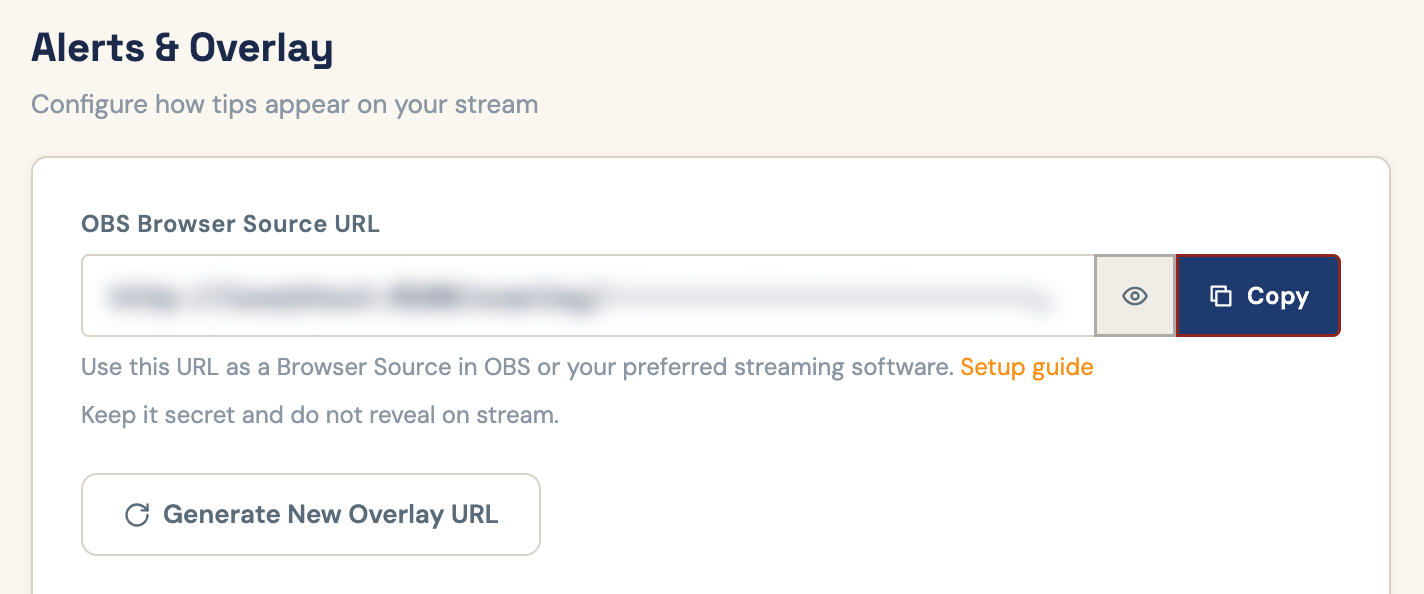
- Keep the URL secret. Anyone with it can show your alerts.
- Keep the Browser Source at its default size (800 × 600 in OBS). The alert sits top-center in it. Drag the source to move it, but don't drag its corners to make it bigger: that blurs and stretches the alert.
- Leave the source running when you switch scenes. Shutting it down drops the live connection and you can miss a tip.
2Add to your streaming software
Pick your app.
OBS Studio
- Open OBS Studio and select the scene you stream with.
- In the Sources dock, click + and choose Browser.
- Name it CheddarChat Alerts and click OK.
- Paste the alerts URL from Settings → Alerts & Overlays into URL.
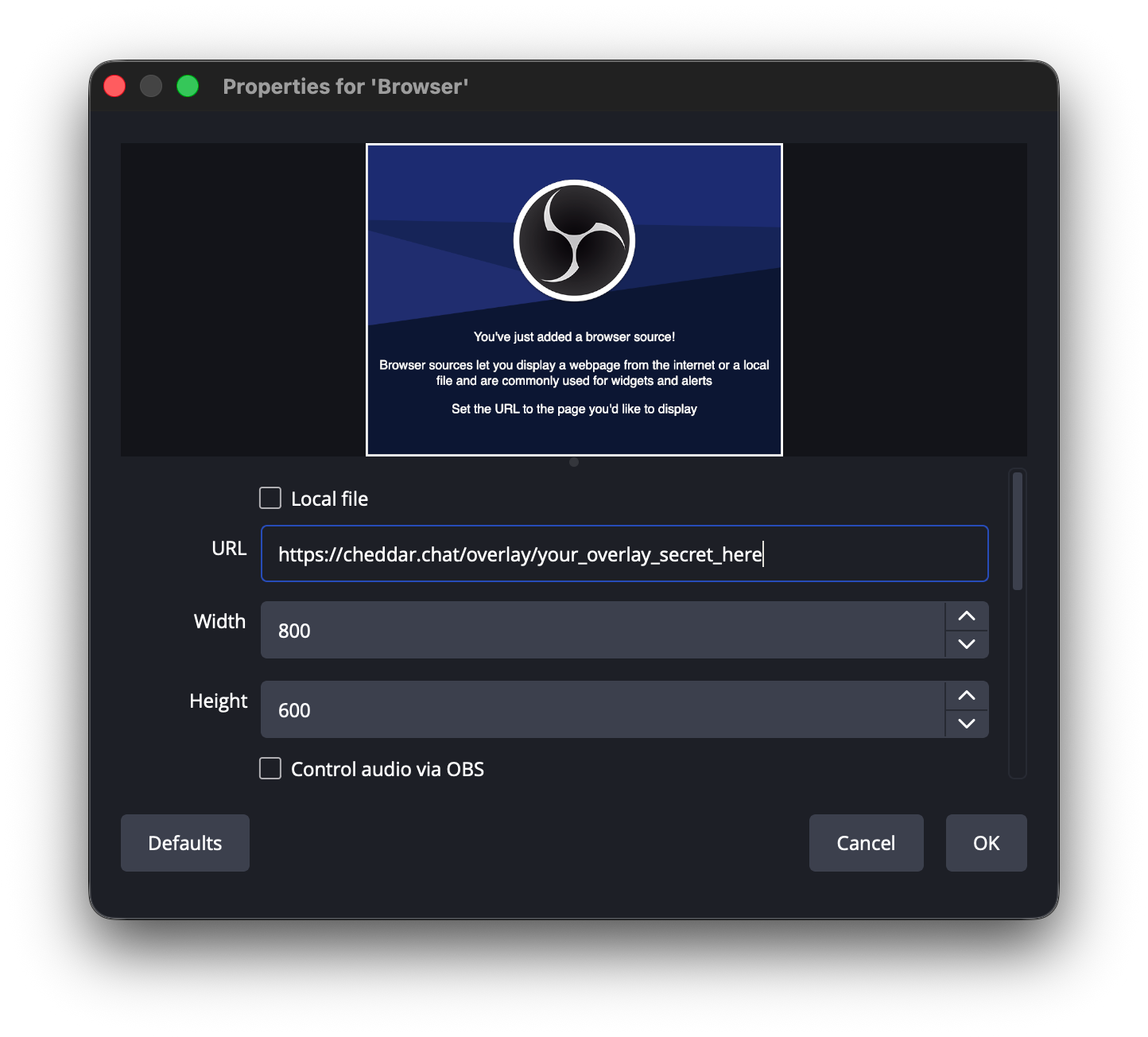
- Leave Width and Height at 800 and 600.
- Leave Shutdown source when not visible unchecked so tips still fire if you switch scenes.
- Leave Refresh browser when scene becomes active unchecked.
- Turn on Control audio via OBS if you use text-to-speech — volume then lives in the Audio Mixer.
- Click OK. Drag CheddarChat Alerts to the top of the source list so it sits above your game and camera, then move it where you want alerts to appear.
Streamlabs Desktop
Use a Browser Source — not the built-in Streamlabs Alert Box — for CheddarChat tips.
- Open Streamlabs Desktop and stay on the Editor tab.
- In Sources, click + and choose Browser Source.
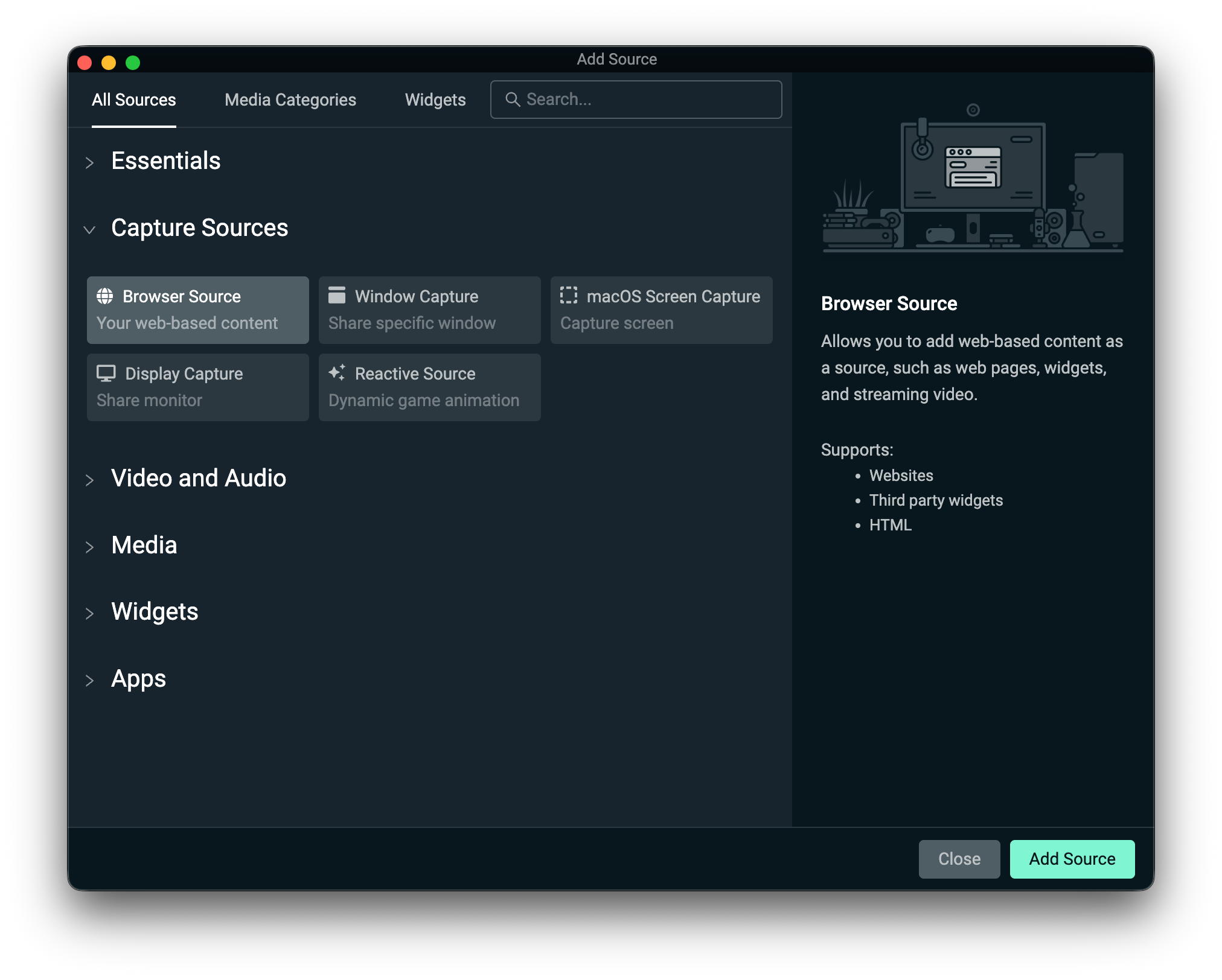
- Name it CheddarChat Alerts and click Add Source.
- Paste the alerts URL from Settings → Alerts & Overlays into URL.
- Leave Width and Height at their defaults.
- Leave Shutdown source when not visible and Refresh browser when scene becomes active unchecked.
- Click Done. Drag the source to the top of the source list, then move it where you want alerts to appear.
- If you use TTS, find CheddarChat Alerts in the mixer and set its volume.
PRISM Live Studio
PRISM (sometimes styled Prizm) uses the same Browser source as OBS.
Streaming from the PRISM mobile app? Add the alerts URL as a Web widget (My Studio → Widget → Web). PRISM's guide shows each step: Using Web Browser Widget.
- Open PRISM Live Studio and select your scene.
- In Sources, click + and choose Browser.
- Name it CheddarChat Alerts and click OK.
- Paste the alerts URL from Settings → Alerts & Overlays into the URL field.
- Leave Width and Height at their defaults.
- Leave Shutdown source when not visible unchecked.
- Leave Refresh browser when scene becomes active unchecked.
- Turn on Control audio via PRISM if you use text-to-speech.
- Click OK. Keep the source above your game and camera, then move it where you want alerts to appear.
3Check that it works
- In Alerts & Overlays, click Send Test Alert. You should see the sample tip on the Browser Source.
- If TTS is on, you should hear it in that source’s mixer channel. Raise or mute it there — not in Windows/macOS system volume.
- If you click Generate New Overlay URL, paste the new link into the Browser Source.
Need a wallet first? Wallet guide · Questions: x.com/cheddarchatbot or primal.net/cheddarchat